旅 — Running Omarchy on the MacBook 12"
—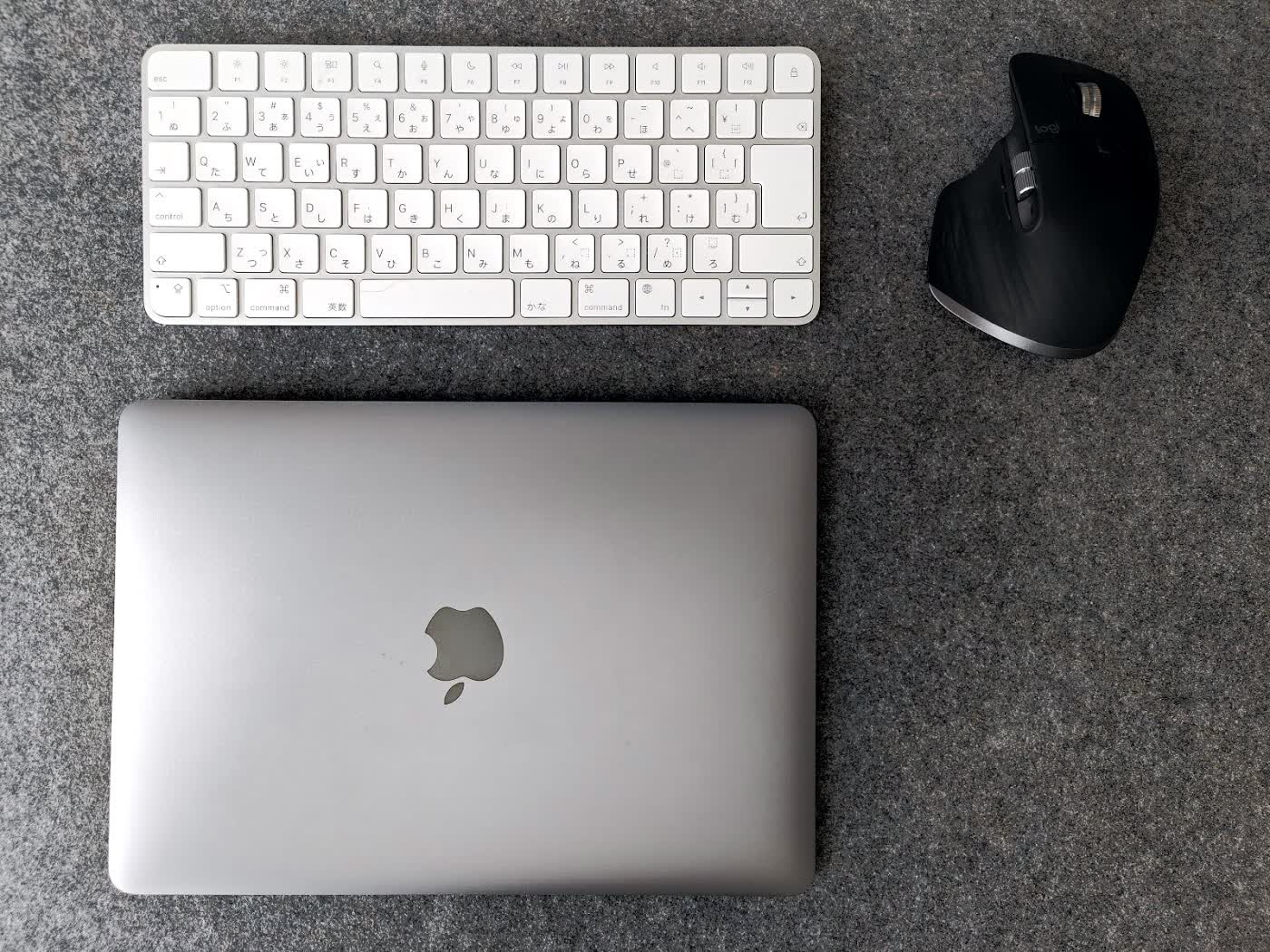
I have a small fleet of computers. There’s my used-but-new M4 MacBook Air from Tokyo, which does everything effortlessly and makes me feel slightly guilty for how little I push it. There’s my ThinkPad T480s running Omarchy as my primary Linux driver. There’s an M1 Mac Mini I now use as a server, and my old Intel Mac Mini from 2014 as another. And there’s the Fujitsu Esprimo Q556 sitting on my desk, also running Omarchy, handling the more grunt-work things that I don’t want warming my lap.
I’ve been a Mac user since 2003, when I purchased an iBook G4 so I could make better use of my new iPod 3rd Gen. I’ve always been a Windows user in some capacity; either research instruments used Windows (XP, Vista, 7) or my venture into Windows Mobile with the Nokia Lumia, and then using Windows 10 at work over the last years. But I’ve always had my own personal Mac.
At one point I did try installing Ubuntu onto a mobile phone, with the idea of plugging it into a screen and having a single computer/phone for everything. This must have been in 09. Basically, it was a bit shit, and my experience of using Linux (though Ubuntu) was that I did not like the UI whatsoever. I was a Mac user, and OSX (at the time) was so polished. I basically never even thought about Linux again, and instead, used brew on Mac for some Unix-commands and stuff. I do have a couple of retro/old devices that I have installed AntiX onto (a Linux distribution), but that is for another day.
I got the aforementioned M4 Air in Tokyo, with Japanese keyboard, 24GB RAM and 512GB SSD for a decent price. It’s a great machine. I am using it right now. The issue is, that I learned about a fun new Linux setup a few days after buying it. It’s not actually a distribution of Linux, but rather an “opinionated” Arch Linux setup running Hyprland, called Omarchy. It’s by DHH; of Le Mans and Ruby on Rails fame. I went through the pain of installing it as a dual boot on my Thinkpad to test it out. Loved it, and within the same afternoon I overwrote Windows 11 and it is now a pure Linux machine. The ThinkPad is a joy to use with it. The Fujitsu is a stalwart. But both are desk machines, more or less.
Then there’s tabi.
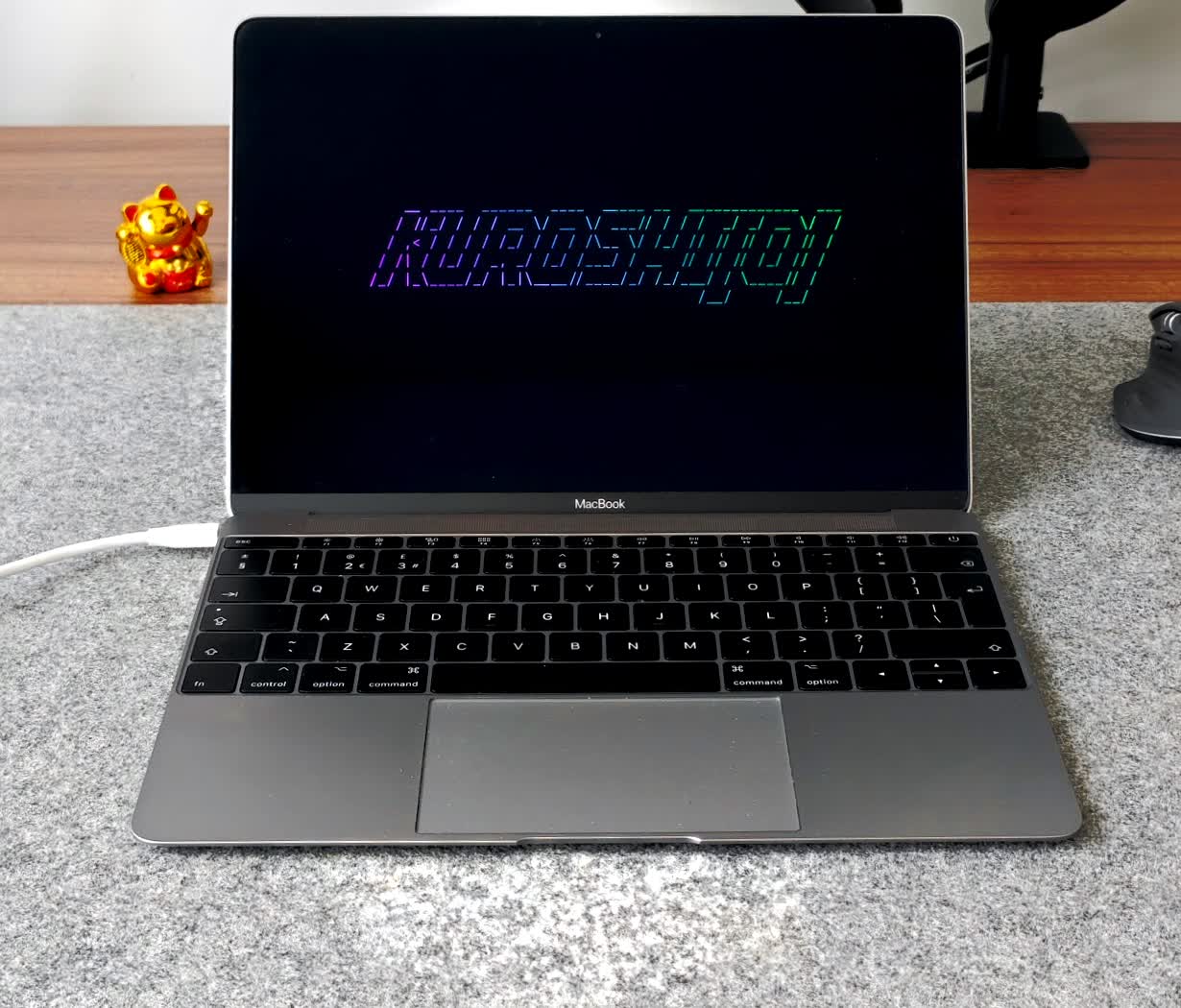
Tabi is a MacBook Retina 12-inch from 2017. You’ll know the one—the impossibly thin fanless machine with the single USB-C port and the butterfly keyboard that everyone hated (mine still works, somehow). It has an Intel Core i5-7Y54, 8GB RAM, and a 256GB SSD. Once upon a time, I did have a 16GB i7 machine, but sold it long ago, as I decided I was using my iPad Pro more. In fact, I wrote about the iPad here, though it’s a bit long-winded and kiss-ass, in retrospect. I’ve since completely ditched the iPad life and haven’t looked back once.
Apple dropped support for the 12-inch MacBook years ago, and it had been running macOS Ventura, and for a while I used to unlock it with my Apple Watch and aside from chugging along, the machien worked well. It was a tough decision to wipe it entirely.
The name tabi (旅) means journey or travel in Japanese—fitting for a machine intended to live in a bag and be grabbed when going somewhere. It’s smaller than the newly released MacBook Neo, and as I already have an M4 Air that is the most powerful machine in my arsenal, the MacBook gathered dust.
The motivation was simple: I have the M4 Air for serious macOS work. I don’t need a second macOS machine. What I do want is a featherlight ultraportable I can take anywhere, flip open, and SSH into my home machines via Tailscale. Omarchy is essentially perfect for this—it’s a keyboard-driven environment running almost nothing at idle. On a 7W TDP chip with no fans, that’s the dream.
Getting it running
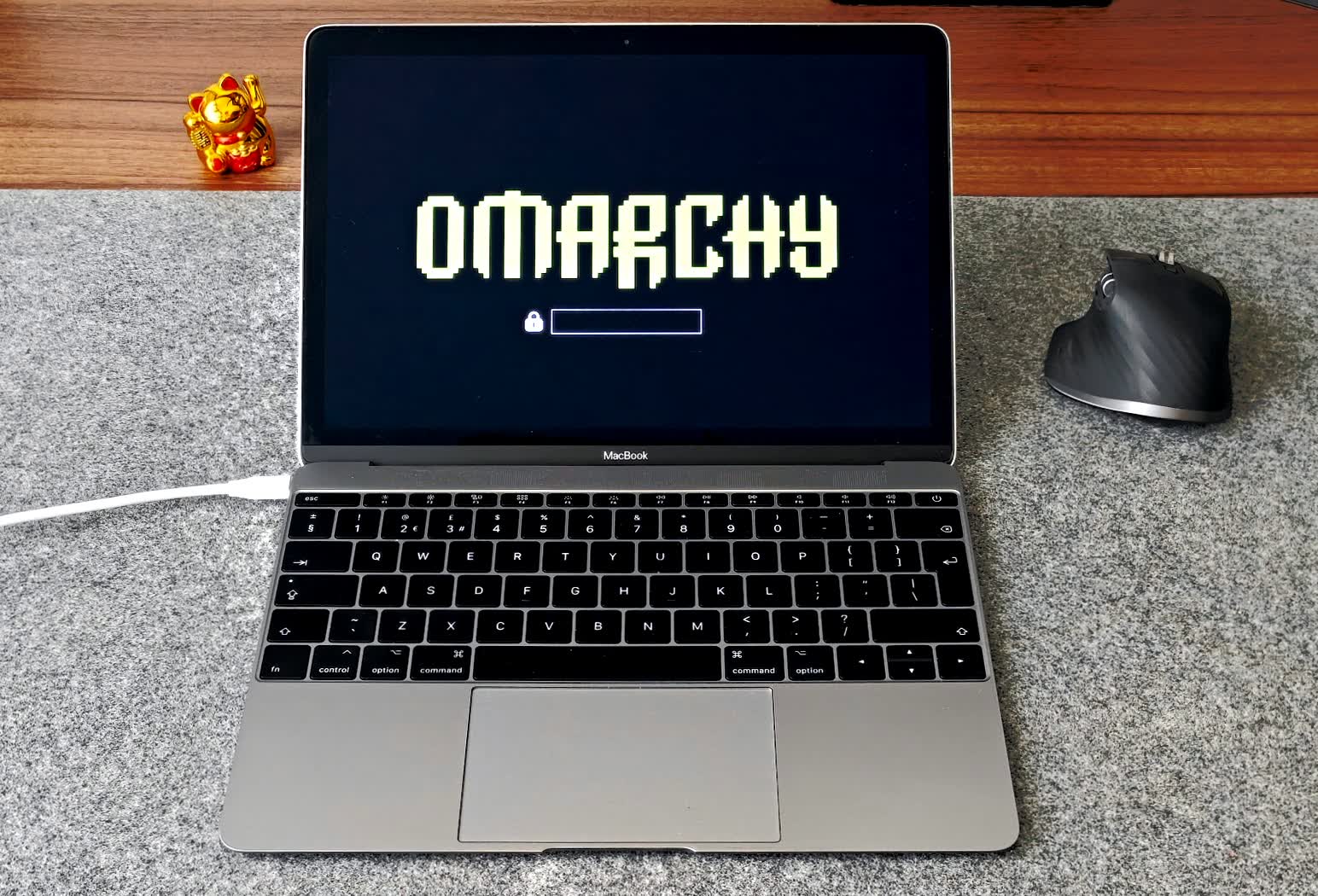
The MacBook 12” is a no-T2-chip machine, which makes Linux installation relatively straightforward compared to the later Intel MacBooks. There’s no security chip fighting you. I downloaded the Omarchy ISO from omarchy.org, dropped it onto my Ventoy drive (no reflashing needed—just copy the ISO across), and booted holding Option at startup.
The installer wiped the drive—Omarchy only supports officially being the sole OS, which I knew going in—and everything went largely without drama. First boot: keyboard worked. WiFi connected. This is already better than I expected.
A few post-install fixes specific to the 12” were needed, documented here by someone who’d done the same:
NVMe sleep fix. Without this, closing the lid can leave the machine in a bad state on wake. A small systemd service writing 0 to the d3cold_allowed sysfs path for the NVMe controller sorts it.
Suspend on lid close. Works via the standard Omarchy suspend setup once enabled under the System menu.
I pulled my dotfiles from GitHub (private repo—needed a personal access token rather than a password, which caught me off guard for a moment), ran install.sh, and had my GB keyboard layout, Hyprland bindings, Starship prompt, and Batou theme all in place within minutes. I named the machine tabi in the Omarchy setup, which I was perhaps unreasonably pleased about.
Tailscale
This was the main event, really. I wanted tabi to be able to SSH into any of my machines from anywhere—hotel, café, airport, wherever. This is actually a big deal for me in 2026. I use AI agents (mostly LLMs, truth be told) near-daily. But I dont use chat apps on my phone much. Rather, I can SSH (remote connect) to my home-network machines from anywhere, and run things locally on those machines. This is useful if for example, I want Claude to run in a specific directly, so it can create, delete, edit files that are on a specific drive. It means, I can “run” Claude on this tiny machine, without installing Claude. I just login to my home M1 Mini or M4 Air, and get going.
Tailscale made this embarrassingly simple. Install on tabi:
sudo pacman -S tailscale
sudo systemctl enable --now tailscaled
sudo tailscale up
Authenticate via browser on another machine, and that’s it. Tabi joined my Tailnet alongside M4 Air, M1 Mini, the Esprimo, and my the Thinkpad. Now I can ssh user@m1mini from anywhere in the world. It’s genuinely magic, and I’ll never stop being pleased that it just works.
SSH itself on tabi: sudo systemctl enable --now sshd, and it’s accessible from the rest of the fleet too.
What works well
Essentially everything you’d want from a portable terminal machine:
- Keyboard and trackpad: fine, no fixes needed
- WiFi: works out of the box (Broadcom, so some power management caveats, more on this later)
- Display: the 2304×1440 Retina panel is gorgeous, and Hyprland handles HiDPI well
- Battery: reasonable—the 7W chip helps, and with powertop and power-profiles-daemon the idle draw is very low. Not Ventura-level, but acceptable
- Suspend/resume: solid, including lid close
What doesn’t work
Audio. This is the one. The CS4208 Cirrus Logic codec in the 12” MacBook is a notorious problem on Linux. There are several community driver forks—I tried leifliddy’s and juicecultus’s fork which builds on kernel 6.17+. The driver loads, PipeWire sees the sink, the audio stream runs—but no sound comes out, from speakers or headphone jack.
The root cause, as best I can tell: the driver is reporting the codec subsystem ID as 106b:0000 when the actual ID is 106b:6600 (the MacBook10,1 2017 identifier). This prevents the correct fixup (MBA6) from being applied, which means the speaker amp never gets activated. I got as far as patching the quirk table in the driver source to add an entry for 106b:6600, but the ID mismatch happens at a lower level and the patch didn’t help. This is a driver bug that needs proper kernel development attention.
If audio matters to you, this isn’t the machine to try Linux on right now. For my use case—SSH terminal—it makes no difference.
Camera. The FaceTime HD camera requires the facetimehd driver from AUR (facetimehd-dkms). It does install, the camera light comes on, but I haven’t gotten a clean preview out of it yet. Low priority.
A note on Tailscale and WiFi
One gotcha worth noting for anyone following a similar path: if you run powertop --auto-tune, it will aggressively set your Broadcom WiFi PCI device to auto power management, which can break WiFi entirely—leaving you with no network and a machine you’re typing on with no SSH fallback. The fix is:
echo on | sudo tee /sys/bus/pci/devices/0000:03:00.0/power/control
echo on | sudo tee /sys/bus/pci/devices/0000:02:00.0/power/control
I’ve pinned this with a systemd service so it survives reboots. Learn from my mistake.
Is it worth it?
For me, yes. tabi is a lovely machine to carry around. Under 1kg, silent, great screen, and now it does exactly one job extremely well: give me a terminal with access to everything else. The fact that it was sitting in a drawer running an unsupported macOS install made the decision easy.
If you have one of these gathering dust and you’re comfortable with a bit of post-install tinkering, Omarchy runs well on it. The keyboard fix is now apparently handled automatically in recent Omarchy versions, so your mileage may vary—it may just work out of the box.
The audio situation will hopefully improve as the kernel community continues working on the CS4208 driver. If you solve it before I do, I’d genuinely love to know.
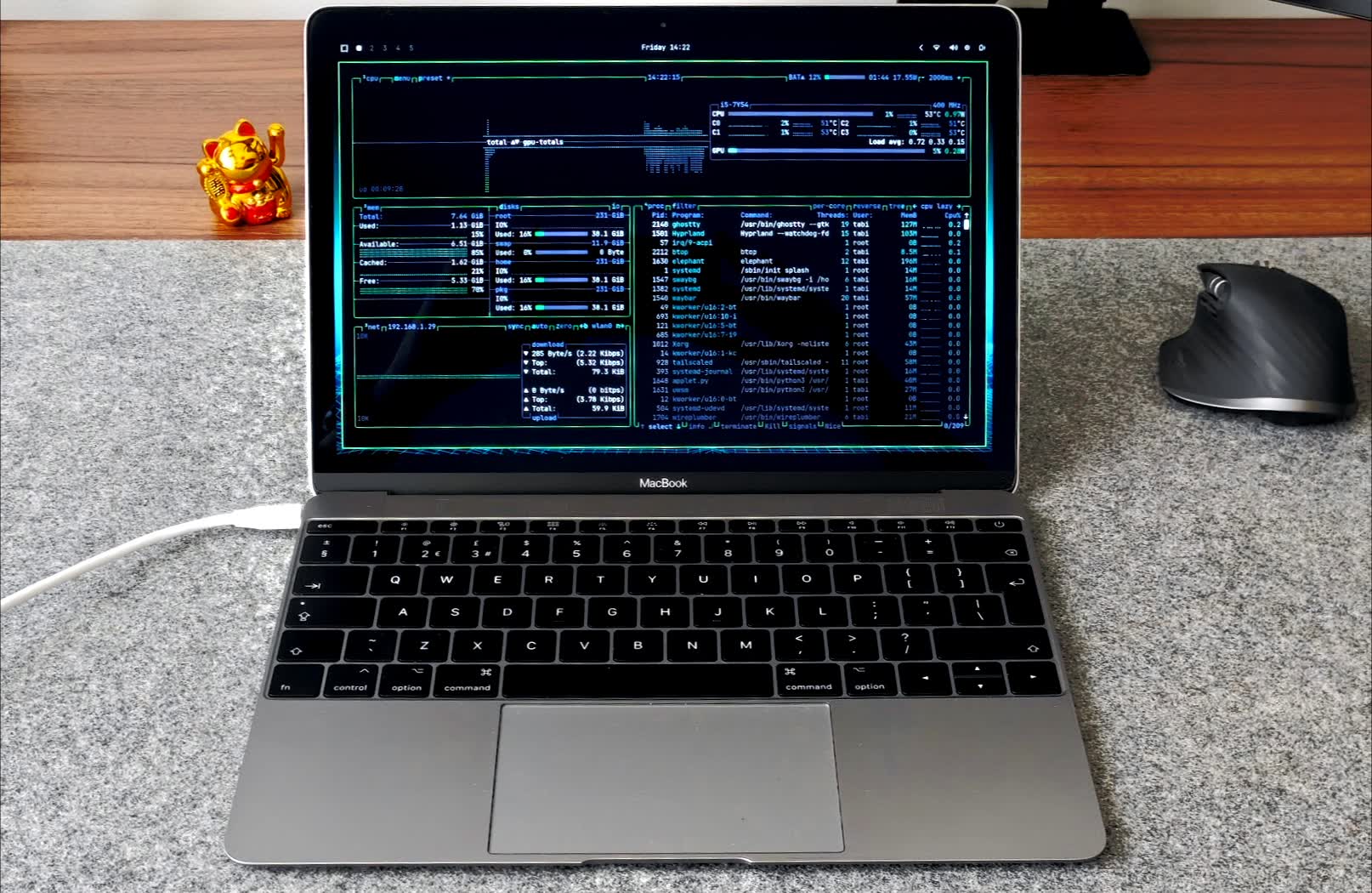
Running Omarchy on: ThinkPad T480s, Fujitsu Esprimo Q556, MacBook Retina 12” 2017, and in VMware Fusion on the M4 Air.
Enjoyed this post? Get in touch.