Running Omarchy in a VM on the M4 MacBook Air
—
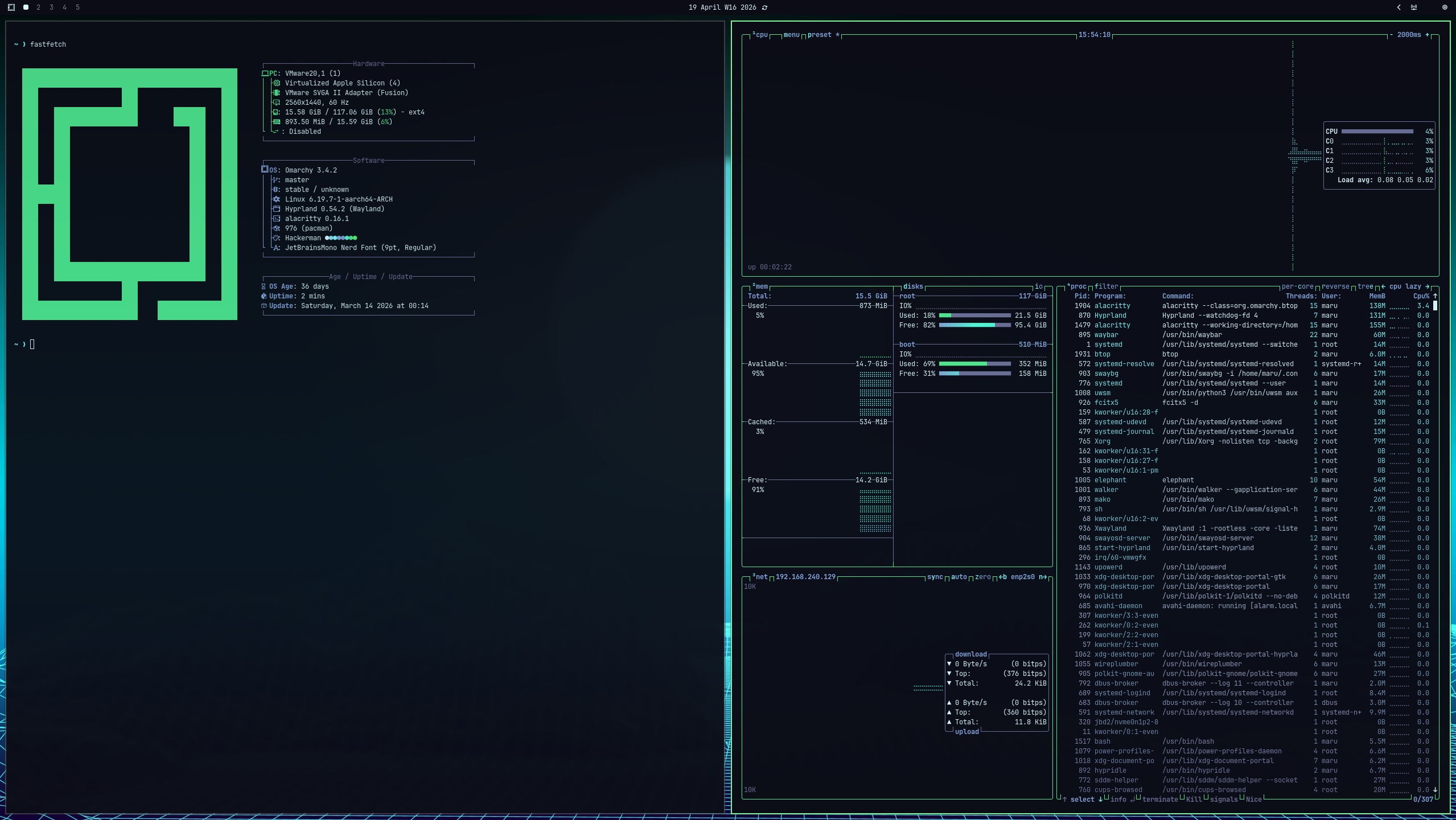
If you’ve read my post about running Omarchy on the MacBook 12”, you’ll know I’ve been going fairly deep on this. The M4 MacBook Air is the other machine in my fleet where I wanted to explore Omarchy — not natively (it’s my primary macOS machine, and I’m not wiping it), but in a VM. Specifically, VMware Fusion, which is free for personal use and handles Apple Silicon guests well.
This is a quick step-by-step of what I did, including the aarch64 Dropbox problem and how I got around it.
Why bother with a VM?
Honestly, as a playground more than anything. I want to iterate on Omarchy configs — Hyprland keybindings, dotfiles, theme tweaks — without risking my working setups on the ThinkPad or the Esprimo. A VM is disposable. Break it, nuke it, start again.
That said, I also wanted to get Obsidian running with my actual vault synced via Dropbox. So it’s not purely experimental — it’s a sandboxed environment that still connects to real data.

Step 1: Install VMware Fusion
VMware Fusion is free for personal use. Download it from broadcom.com. You’ll need a Broadcom account, which is mildly annoying, but it’s a one-time thing.
Step 2: Get the Omarchy ISO
Head to omarchy.org and grab the ISO. Drop it somewhere sensible on your Mac.
Create a new VM in Fusion, point it at the ISO, give it a reasonable allocation — I went with 4 cores, 8GB RAM, 60GB disk. On an M4 Air with 24GB that’s comfortable.
The installer is straightforward. Omarchy only supports being the sole OS on a machine, so the VM disk gets wiped entirely, which is fine — it’s a VM.
Step 3: Post-install basics
Once you’re in, get SSH running so you can drive the VM from your Mac terminal rather than the Fusion window:
sudo systemctl enable --now sshd
Get the VM’s IP:
ip addr
Then from your Mac:
ssh yourusername@192.168.x.x
Much more comfortable. You can also use Tailscale here if you want the VM accessible on your Tailnet, though for a local VM it’s optional.
Step 4: The Dropbox problem on aarch64
Here’s where it gets interesting. The M4 Air is ARM — aarch64 — and Dropbox has never shipped a Linux client for ARM. If you try to install the official client, it simply doesn’t exist for your architecture.
The solution is Maestral — an open-source Dropbox client written in Python that talks directly to the Dropbox API. Because it’s pure Python, it runs fine on aarch64. Crucially, it also doesn’t increment your Dropbox device count the way the official client does, which matters if you’re on the free tier.
Install it via yay:
yay -S maestral
If you hit a mirror 404 during installation (I did — python-sphinx_rtd_theme failed), just refresh your mirrors first:
sudo pacman -Sy
Then retry. It’ll pull in a bunch of Python dependencies but it installs cleanly.
Step 5: Link Maestral to your Dropbox account
maestral auth link
Choose to print the auth URL to console, open it in any browser (your Mac browser is fine), log into Dropbox, authorise the app, and paste the token back into the terminal.
✓ Linked to yourname@email.com
Step 6: Selective sync
Rather than syncing your entire Dropbox, you can choose specific folders. This matters if you’re on the free tier with limited space, or just don’t want everything on a VM.
maestral start
It’ll ask where to put the local Dropbox folder (the default is fine), then ask if you want to sync everything. Say No, and you’ll get an interactive list where you can pick just the folders you want — in my case, brain2, which is my Obsidian vault.
Use arrow keys to navigate, → to select a folder, then confirm. Maestral starts syncing immediately.
Check status anytime with:
maestral status
To make it start on boot:
maestral autostart enable
Step 7: Obsidian
Install Obsidian via the AUR:
yay -S obsidian
Point it at your synced vault folder inside ~/Dropbox/brain2 (or wherever Maestral put it). That’s it — your vault is live.
Is it worth it?
As a tinkering sandbox: yes, absolutely. Omarchy in a VM on the M4 Air is a genuinely nice way to experiment with configs before pushing them to your real machines. The performance is good — the M4 chip makes light work of an aarch64 Linux VM.
As a daily work environment: probably not. One screen, VM overhead, and the occasional friction of running inside Fusion rather than natively all add up. When I want to actually work in Omarchy, I go to the ThinkPad or the Esprimo.
But as a playground that syncs to your real data? It works, and the Maestral workaround is clean enough that I’ll keep it around.
Running Omarchy on: ThinkPad T480s, Fujitsu Esprimo Q556, MacBook Retina 12” 2017, and in VMware Fusion on the M4 Air.
Enjoyed this post? Get in touch.